Build Lasting Habits
Create, schedule, and track habits that support your longevity goals
What this feature does
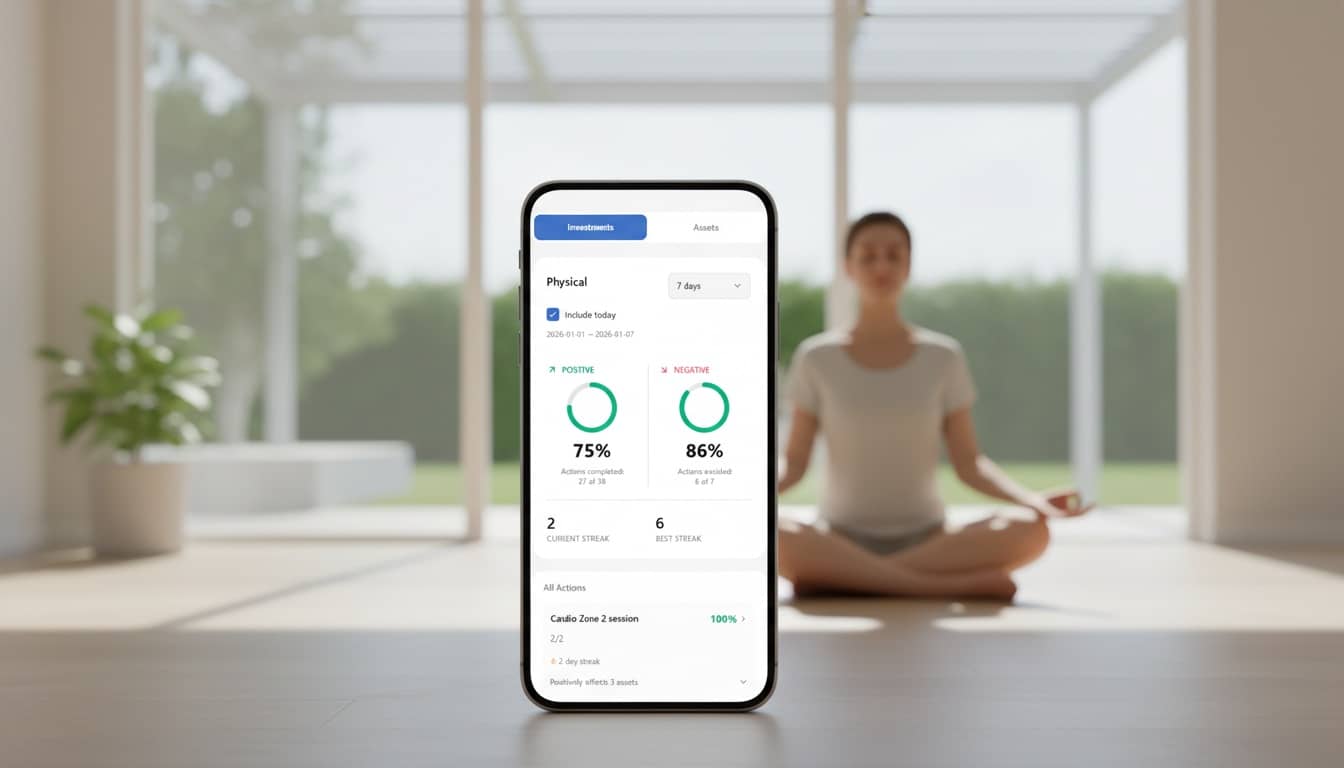
Habit Management is the core of building your longevity lifestyle. It allows you to create, schedule, and track habits that support your health goals. You can use pre-built templates or create completely custom habits with flexible scheduling options.
How it helps you
- Access pre-built habit templates organized by health asset (Physical, Cognitive, Emotional)
- Create custom habits with flexible scheduling (daily, weekly, monthly, specific days)
- Track both positive habits (build) and quit habits (limit)
- View detailed statistics and trends for each habit
- Archive and restore habits as your goals evolve
How to Use This Feature
Step 1: Access the Habit Library
- From the Home screen, scroll to the bottom and tap "Add new habit"
- Or navigate to the Habit Library from the More tab
- You'll see a searchable library of habit templates
Step 2: Browse Habit Templates
- Use the category tabs at the top to filter:
-
- All (shows all habits)
- Physical (habits for physical health)
- Cognitive (habits for cognitive health)
- Emotional (habits for emotional health)
- Use the search bar to find specific habits
- Browse available templates with descriptions
Step 3: Select a Habit Template
- Tap on a habit template to view its details
- See description, category, and which health assets it impacts
- Tap "Create Habit" to add it to your protocol
Step 4: Configure Your Habit
- Name - Edit if needed (pre-filled from template)
- Description - Add your own notes (optional)
- Target Value - Set your goal (e.g., 30 minutes, 8 glasses)
- Target Period - Choose "Per Day" or "Per Week"
- Frequency - Select:
-
- "Every Day" - For daily habits
- "Specific Days of Week" - Then select which days
- Time of Day - Optional: set a specific time or leave as "Anytime"
- Tap "Save" when done
Step 5: Create a Custom Habit
- From Habit Library, tap "Create Custom Habit"
- Enter habit name and description
- Select habit type:
-
- Boolean (done/not done)
- Count (e.g., glasses of water)
- Duration (e.g., minutes of meditation)
- Set direction:
-
- Build (positive habit you want to increase)
- Limit (habit you want to reduce or quit)
- Configure scheduling and targets as above
- Tap "Save"
Step 6: Schedule Your Habit
- For habits with specific times:
-
- Go to Protocol → Physical Activity (for workout habits)
- Or set time directly in habit settings
- For "Anytime" habits, they appear in the "Anytime Today" section
- Weekly habits appear in "This Week" section
Step 7: Track Your Habit Daily
- Open Home dashboard
- Find your habit in the daily checklist
- Tap the checkbox to mark it complete
- For count/duration habits, you may need to enter a value
Step 8: View Habit Statistics
- From Home, tap the statistics icon next to any habit
- View:
-
- Completion rate over time
- Trend charts
- Heatmap showing daily completion
- Best streaks and patterns
- Use this to identify what's working
Step 9: Edit an Existing Habit
- From Home, tap the edit icon (pencil) next to a habit
- Or go to the habit's detail page and tap "Edit"
- Modify any settings:
-
- Name, description
- Target values
- Schedule
- Time of day
- Tap "Save" to apply changes
Step 10: Archive a Habit
- From habit settings or detail page, tap "Archive"
- Confirm archiving
- Archived habits are hidden from your checklist but preserved
- You can restore them later if needed
Step 11: Restore an Archived Habit
- Go to More → Archive
- Find the archived habit
- Tap "Restore" to bring it back to active status
Step 12: Create Quit Habits (Limit Direction)
- When creating a habit, select "Limit" as the direction
- This is for habits you want to reduce or quit (e.g., "Limit screen time")
- Mark the checkbox when you successfully avoid the behavior
- These appear in the "Quit Habits" section on Home
Step 13: Use Habit Diagnostics
- Access from habit statistics or More tab
- View analysis of your habit patterns
- Identify discrepancies or areas for improvement
- Get insights on consistency and adherence