Your Daily Command Center
Track your progress, complete your habits, and see your health investments at a glance
What this feature does
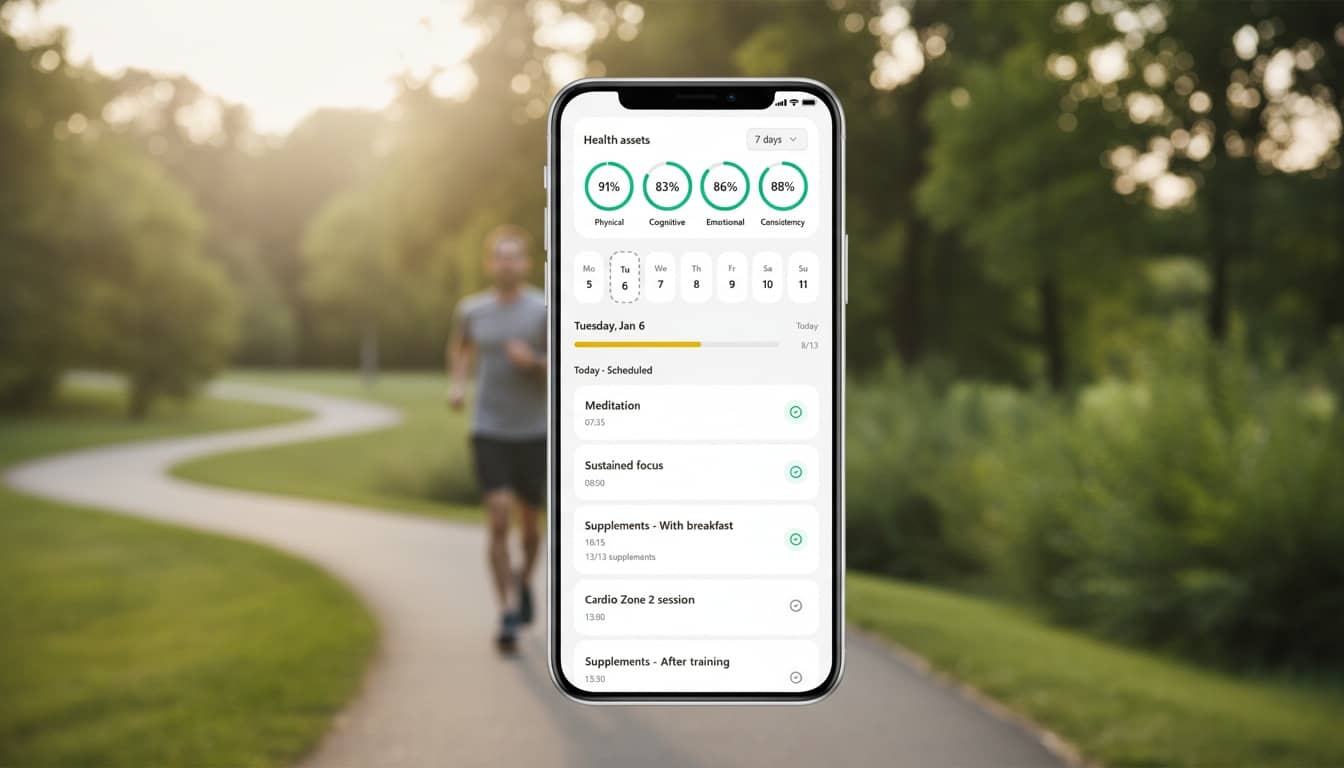
The Home Dashboard is your daily command center where you see everything you need to know about your longevity journey. It combines your health asset progress, daily checklist, and consistency metrics in one unified view.
How it helps you
- See all your daily tasks in one unified checklist
- Track progress across all three health assets (Physical, Cognitive, Emotional)
- Understand which habits impact which health assets
- Navigate between days to review past or plan future activities
- Quick access to add extra activities or new habits
How to Use This Feature
Step 1: Understanding the Health Asset Rings
- At the top of the Home screen, you'll see 3 circular rings representing:
-
- Physical Health (blue ring)
- Cognitive Health (purple ring)
- Emotional Health (green ring)
- Each ring shows completion percentage based on today's planned activities
- Tap any ring to see detailed analytics for that health asset
- Use the range selector (Today, Yesterday, 7d, 30d, 90d, 180d) to view different time periods
Step 2: Viewing Consistency Metrics
- Below the health asset rings, you'll see your overall consistency percentage
- This shows your adherence across all activities (habits + workouts, excluding supplements)
- Tap this to open the full Consistency dashboard with detailed analytics
Step 3: Using the Week Calendar
- Scroll down to see the week calendar
- Tap any day to view that day's checklist
- Today is highlighted in a different color
- Navigate to past days to review or complete missed activities
- Navigate to future days to see what's planned
Step 4: Understanding Your Daily Checklist
- Your checklist is organized into sections:
-
- Scheduled Today - Activities with specific times (e.g., "Morning Meditation at 07:00")
- Anytime Today - Activities without specific times
- This Week - Weekly habits (e.g., "Resistance Training 3x per week")
- This Month - Monthly habits
- Quit Habits - Habits you're trying to limit or avoid
- Extra Activities - Ad-hoc activities you added for specific dates
Step 5: Completing a Habit
- Find the habit in your checklist
- Tap the circular checkbox on the right side to mark it complete
- The checkbox turns green and the item is checked off
- To undo, simply tap the checkbox again
Step 6: Completing a Supplement
- Find the supplement in your checklist
- Tap the checkbox to mark it as taken
- For supplement sections (e.g., "With Breakfast"), tap the section checkbox to mark all supplements in that section at once
Step 7: Completing a Scheduled Workout
- Find the workout in your checklist
- Tap the checkbox to mark it complete
- For resistance training workouts, this creates a workout session you can log details for later
Step 8: Viewing Action Details
- Tap anywhere on an item in the checklist (not the checkbox) to open its detail page
- View statistics, edit settings, or access timers
- Use the back button to return to Home
Step 9: Adding Extra Activities
- Scroll to the bottom of the checklist
- Tap "Add new habit" to add an activity for today
- Select the activity type and complete it
- Extra activities appear in their own section
Step 10: Viewing Progress
- At the top of the checklist, you'll see a progress bar
- Shows "X/Y" completed items and percentage
- Color indicates your progress level (red < 33%, yellow 33-66%, green > 66%)
Step 11: Accessing Statistics
- Tap the statistics icon (bar chart) next to any habit or supplement
- View detailed statistics, trends, and completion history
- Use this to track your progress over time
Step 12: Editing Habits or Supplements
- Tap the edit icon (pencil) next to any item
- Modify settings, schedules, or details
- Changes are saved automatically